Three online tools you can start using...TODAY!

By Beth (Lumpkin) Wardlaw - FF/S
Wordle
First, we will explore Wordle. Have you ever seen a picture like this?
Source: Library20apps Wikispace

This is an example of a Wordle. Wordles can be used in the classroom for a variety of learning experiences! My students adore creating Wordles, and I think yours will too. Often, when creating items like a Wordle, the students are not even aware that they are learning.
For our next project, I am going to have my students create a Wordle to sum up what they have learned in nine weeks about their unit (robotics, photography, video editing, documentaries, etc.). They will then post their Wordle onto their blog/electronic portfolio linked to the standards they are showing mastery of.
Wordles can be used to review vocabulary on a unit, describe ideas, group vocabulary, brainstorm ideas, and even show mastery of a subject. The possibilities are endless.
For more information on how Wordles can be used in the classroom, check out this Wordle Wikispace. I believe one of the challenges using this tool will be the students opening up and allowing themselves to find the words needed to create the Wordle, and not giving up before they are finished. Wordle itself is pretty easy to use. I will have a Wordle already completed, to show them what they will be working towards.
How lucky are we that our ELA students already have a Wordle APP pre-loaded onto their iPads?!
ToonDoo
Next, we will look at ToonDoo. ToonDoo is an online tool to create cartoon strips. When I first came across this site, I was immediately drawn in. I have often said that if we want to motivate students in the classroom, we have got to start creating authentic, meaningful assignments that speak to this new day and age. ToonDoo seems to fit the bill perfectly.
Imagine students creating a cartoon to show mastery of a Math concept, review what they learned in a novel for English, and/or show what events led to the Civil War. This tool can be used by such a wide variety of ages. Even high school level students will enjoy creating a comic strip, especially if they are allowed to show humor/their personality in it. Talk about authentic assessment!
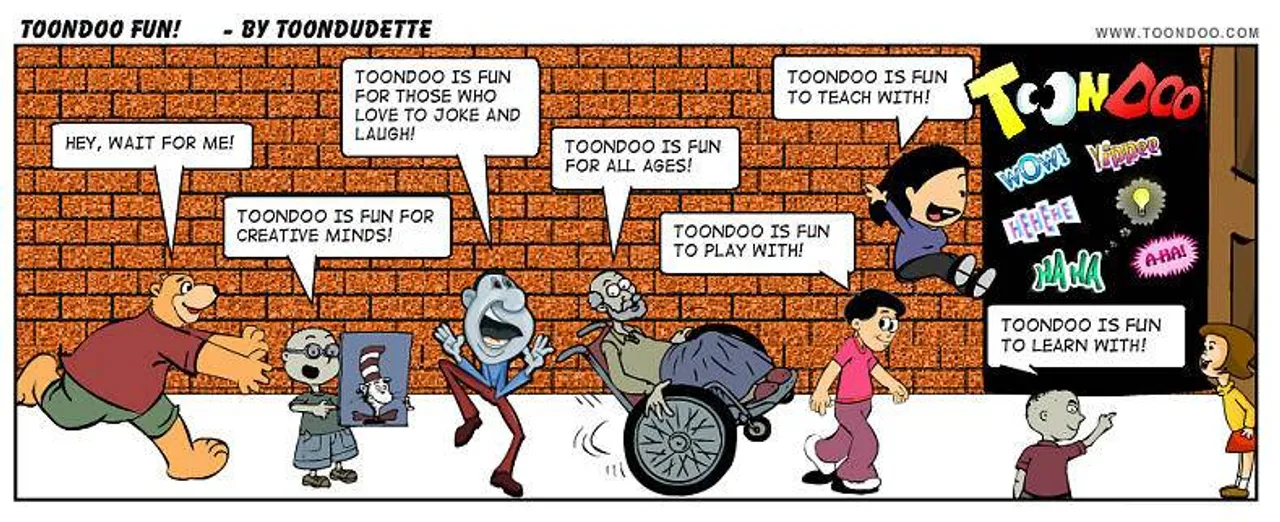
Source: Seymour eLearning Wikispaces

Above is an example of a ToonDoo cartoon found at Seymour eLearning Wikispaces. This Wiki also has some other examples of how to use ToonDoo in your classroom.
I loved using ToonDoo in my Business and Computer Science class. My sixth-graders were working on the basic parts of a computer, and this helped a lot! They had someone walk through identifying these parts, while making a funny comic.
I think one of the challenges is having each student set up their own account. When dealing with younger students, this can often times be tricky. In addition, some students have a hard time thinking outside of the box. How I think I was able to work around this was to set up an account in front of them (on the large projector) and showing them step by step how to do this. Then, I would create a short cartoon while they were watching, as well, to show them how to start and what it will look like.
Once again, we are lucky here at Darlington to have a subscription to ToonTastic that is preloaded on the iPads and can be accessed on the MacBook, as well!
*This is not just an ELA activity! You would be surprised how much the older students enjoy making funny cartoons! It could be used to show what happened in history, how ecology works, the parts of the human body, cell division…..the possibilities are endless!
Plickers
The last tool I want to share with you is Plickers.
Have you ever wanted to use clickers and other expensive assessment tools in your classroom, but just do not have the budget for it? Well, wait no longer! Plickers are cards that you print off, then have students hold up to assess their knowledge on any given subject.
You simply hold up your phone or iPad and scan the room. The students' responses are sent to your device and you can see everyone’s answer, as well as data on the overall responses. It is an amazing resource for everyday assessments! No more tickets out the door that you must grade at home; you could simply scan their response as they are walking out the door and have it at your fingertips.

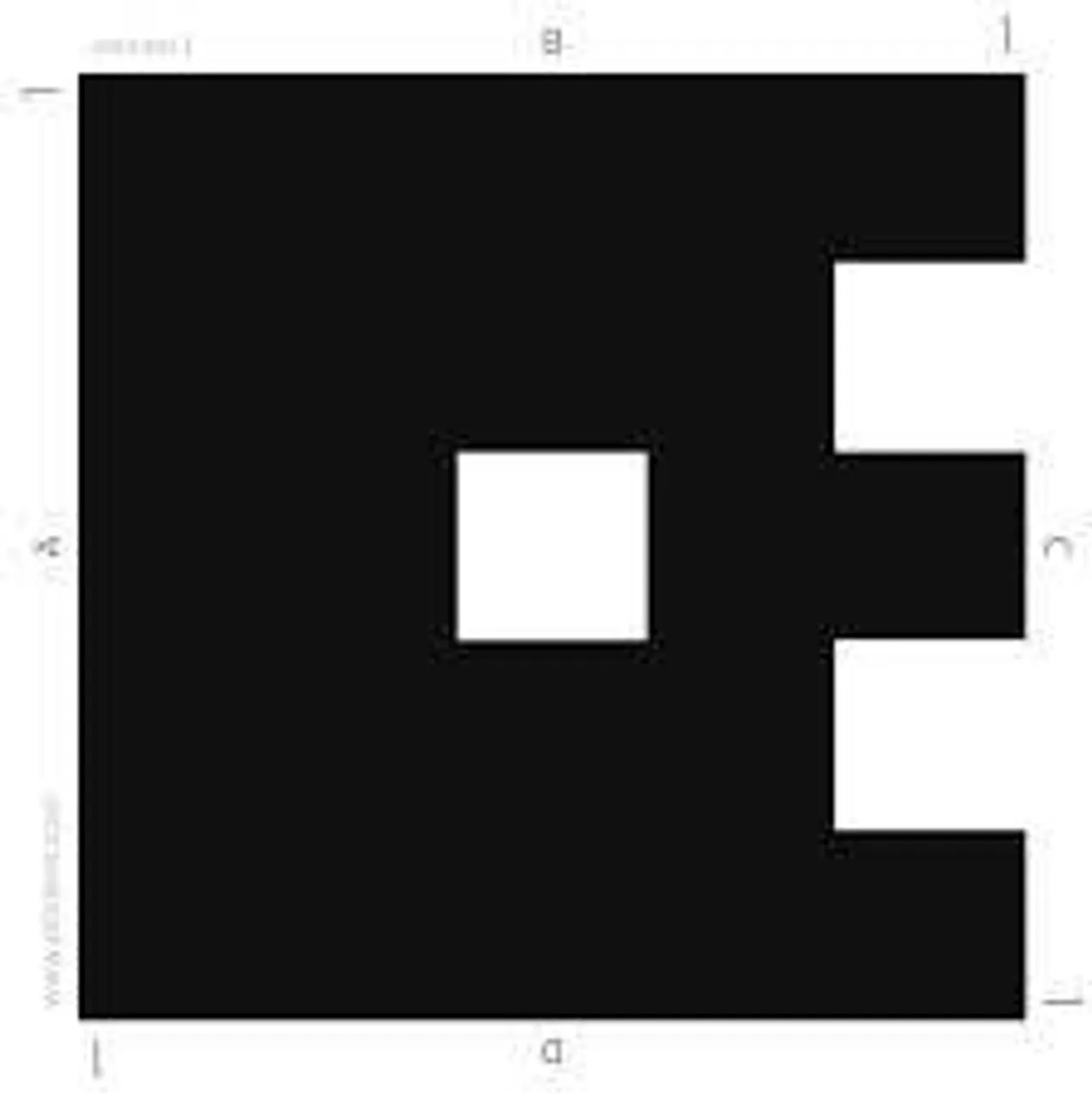
I have inserted a picture above of an example card that I downloaded. For my class, I assign each student a number (notice there is a “3” in each corner of the card; they will have that number card all year).
I give simple assessments during a lesson, and often cumulative assessments at the end of a lesson. The students turn the card to A, B, C, or D depending on his/her answer choice. I am able to see the individual responses, as well as see if I need to spend more time reteaching a concept that many missed.
My students are engaged and do a better job than pencil-to-paper quizzes. One suggestion I will give you is to make sure you place a blank sheet/construction paper on the back of the printed squares. This will eliminate any chance of cheating.
The only drawback is that you must have a smart device to record their responses. The good news is you can use your phone, even if you do not have an iPad or other tablet. I highly recommend Plickers! Your students will love it and you will love the easy data collection!
For more helpful tips on integrating technology into your classroom, contact Beth Wardlaw directly at bwardlaw@darlingtonschool.org.